
Prototype and responsive
Make frames clickable, remember what happens with variables, design a page at several widths, and preview it as a web page.
Keys on this page are shown for your computer, with the other platform's keys after them.
Prototype and Present
The right panel's Prototype tab makes frames clickable. Press Alt+8 on Windows (⌥8 on Mac) and Alt+9 on Windows (⌥9 on Mac) to switch between Design and Prototype; the panel opens on the tab you used last.
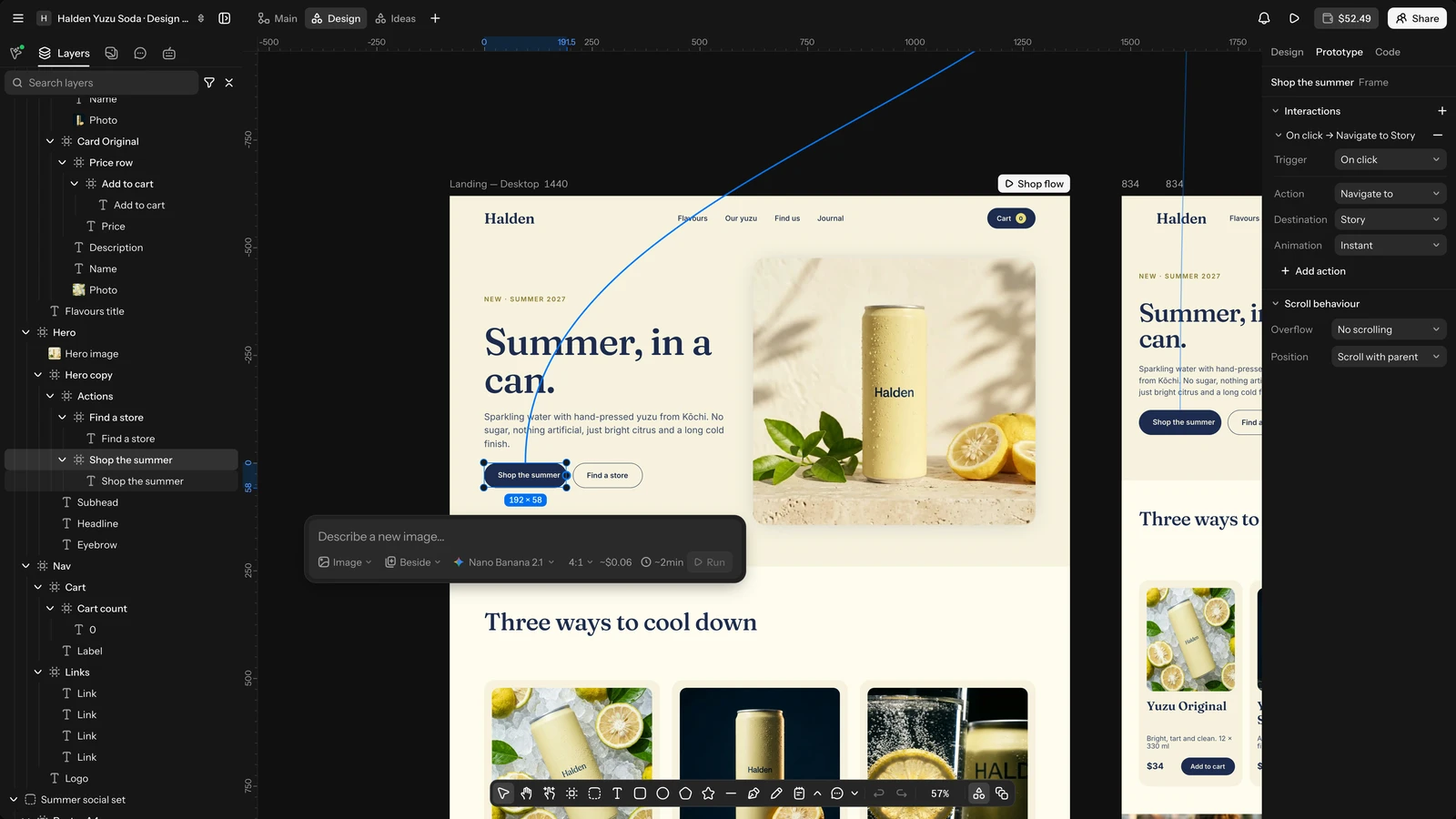
- Interactions: on the Prototype tab, hover a layer in a frame and drag the node on its edge to another frame to connect them (a click that navigates there), or click + under Interactions. Each interaction has a trigger (on click, while hovering, while pressing, mouse enter or leave, after a delay, a key or a gamepad button) and one or more actions: navigate to, open, swap or close an overlay, back, scroll to, open a link, or change to another variant of a component set.
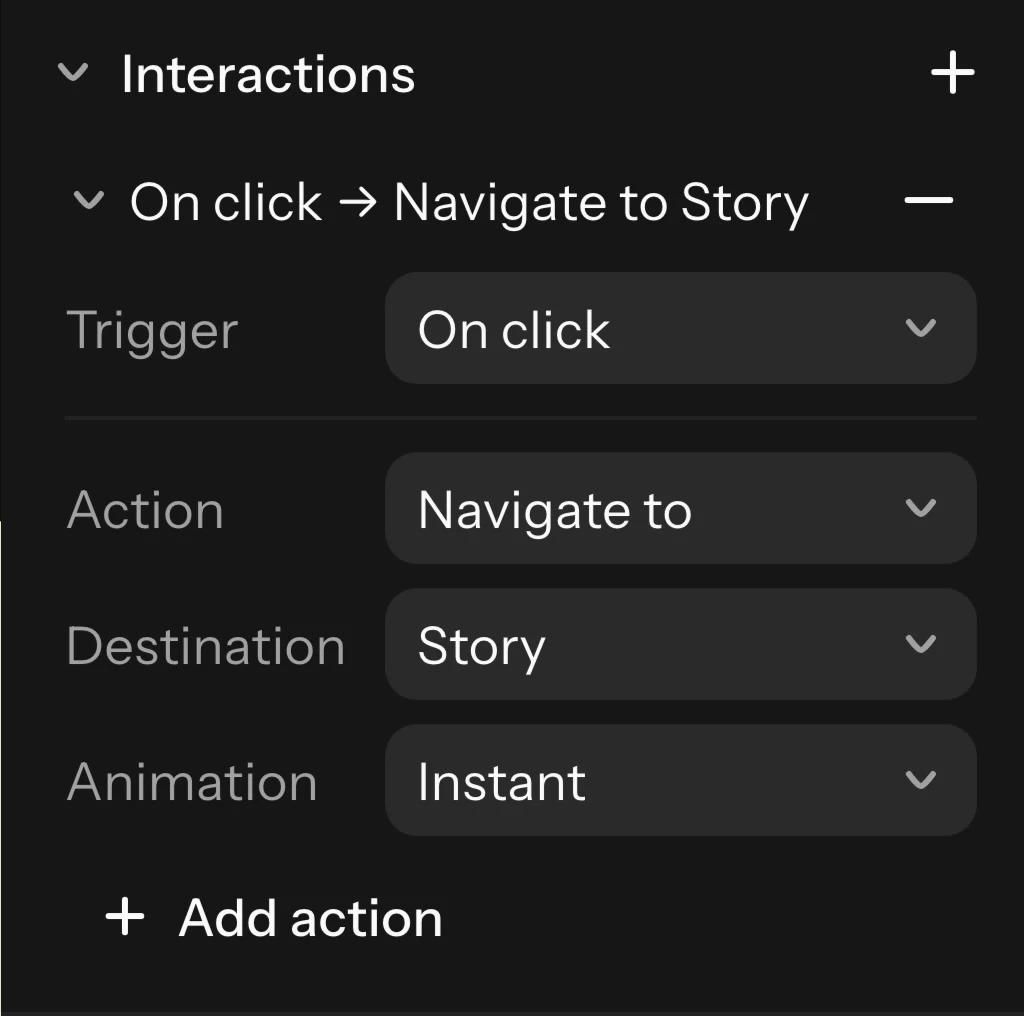
- Animations: instant, dissolve, smart animate (layers with the same name in the same place move to their new place), move in or out, push, and slide in or out, each with a direction, an easing and a duration.
- Interactive components: give a variant an interaction that changes to another variant (a toggle that turns on when clicked), and every instance plays it.
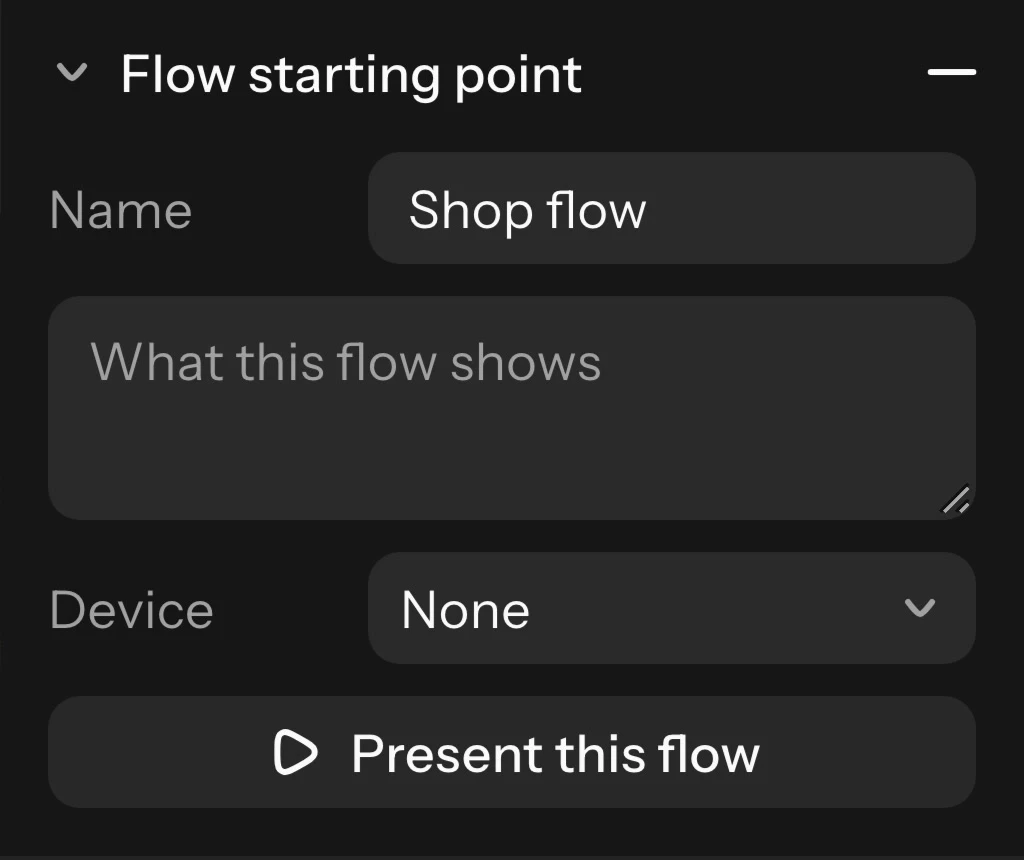
- Flows: select a top-level frame and click + under Flow starting point. A flow has a name, a description and a device frame.
- Scrolling: set a frame's Overflow to scroll what reaches past its edges; set a layer's Position to Fixed to keep it in place (a header) while the rest scrolls. A frame opened as an overlay has its own position, background and close-when-clicking-outside settings.
Present (Ctrl+Alt+Enter on Windows (⌥⌘↩ on Mac)) plays the prototype in a new tab, from the selected frame or the first flow, with each frame's motion. Use ← and → to go back and on, and R to start again. Present is for the project's people; on a public project, visitors who can see the Design tab can also play it.
Variables in prototypes: counters, carts and conditions
Prototype actions can use the board's variables, so a prototype remembers what happens while it plays: a counter, a cart, a setting turned on, a theme switched. Variables change only while the prototype plays. The board keeps its own values, and Present starts from them each time.
- Set variable gives a variable a new value: pick the variable, then type its value. It changes every mode of the variable, or pick one mode to change only that one. The value has to be of the variable's type: a number, text, true or false, or a colour (a hex code or a colour variable).
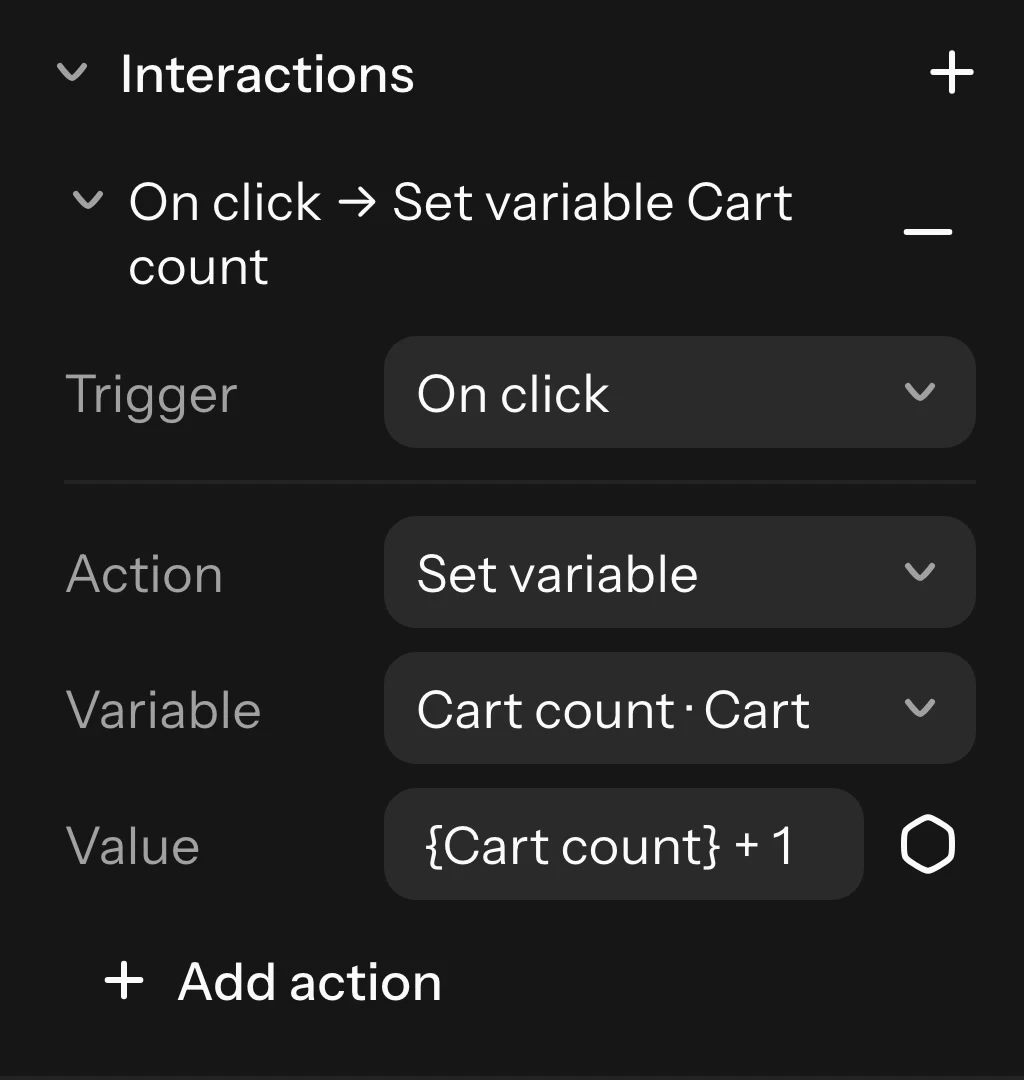
- Set variable mode switches a collection to one of its modes, such as Light to Dark. Layers that don't pick a mode of their own follow it; a frame that picks its own mode keeps it.
- Conditional runs its Then actions when its If is true, and its Else actions when it isn't. Each branch can hold any action, including another conditional.
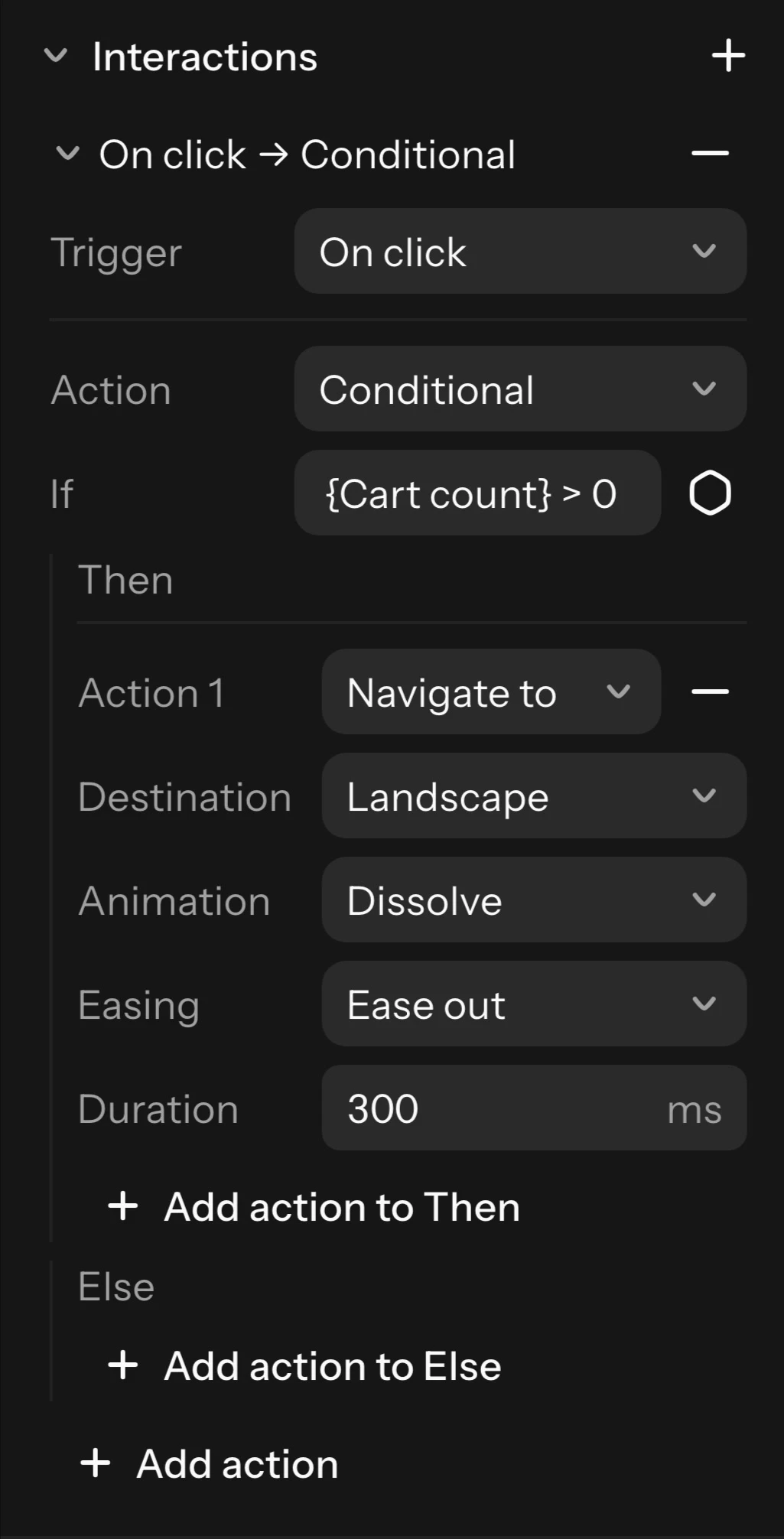
Actions run in order, top to bottom, so a Conditional after a Set variable sees the new value. Layers bound to a variable (text, visibility, fills, sizes) show its new value straight away.
Expressions
Type an expression into Value or If, or use the variable button beside the field to insert a variable's name.
- Numbers:
count + 1,price * 2,total / 4,-count - Text, in quotes, joined with
+:"Items: " + count - Comparisons:
==,!=,<,>,<=,>= - Logic:
and,or,not(or!), and brackets to group:(count >= 3) and not done - A variable whose name has spaces or signs goes in braces:
{Cart total} + 1 - Read a variable in one of its modes with a colon:
price:Large
An expression that can't be read shows what is wrong in red and isn't saved until you fix it. One that reads but mixes types (text compared with a number, for example) is saved and marked, and that action is skipped when the prototype plays.
Present plays variables. The live preview shows the page as web code, where these actions are listed under Not in the code.
Breakpoints: one page at several widths
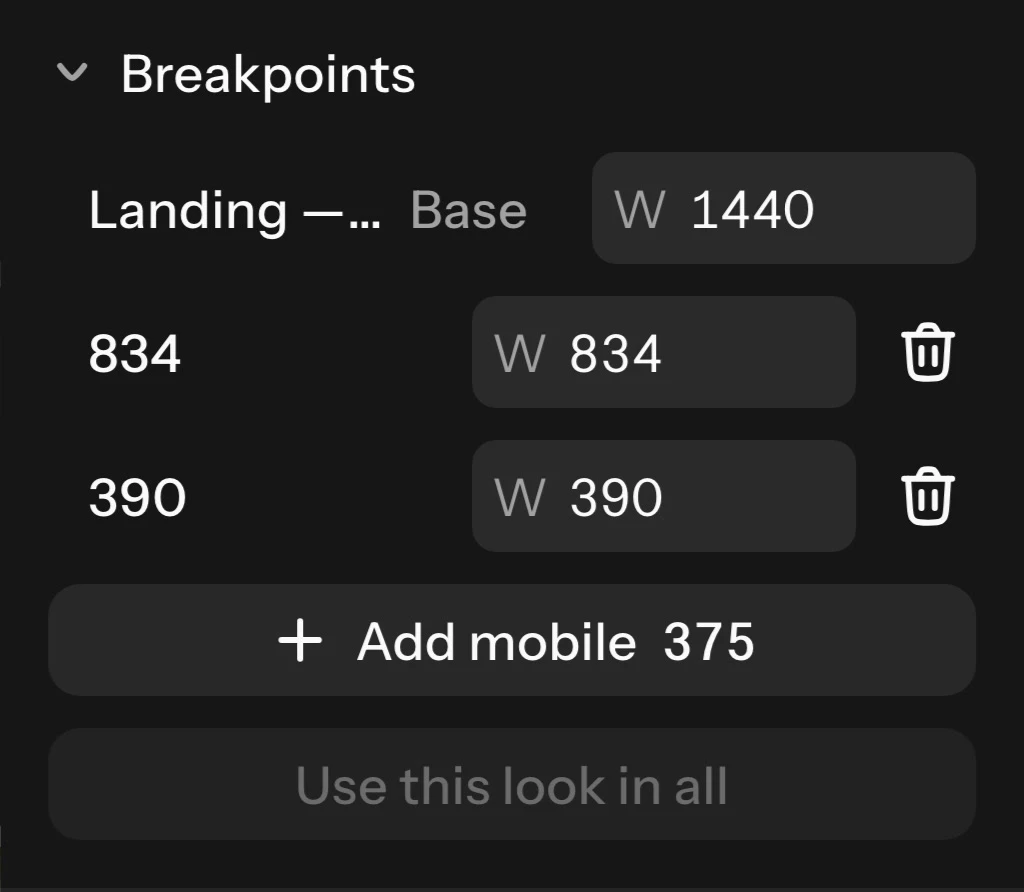
Breakpoints design one page at several widths, such as desktop, tablet and mobile. Select a frame and, in the inspector's Breakpoints section, click the add button for the next width (for example Add tablet 768; the widths are Desktop 1440, Tablet 768 and Mobile 375). The new width appears as a linked frame beside the first one, the base. Type any other width in a row's W field.
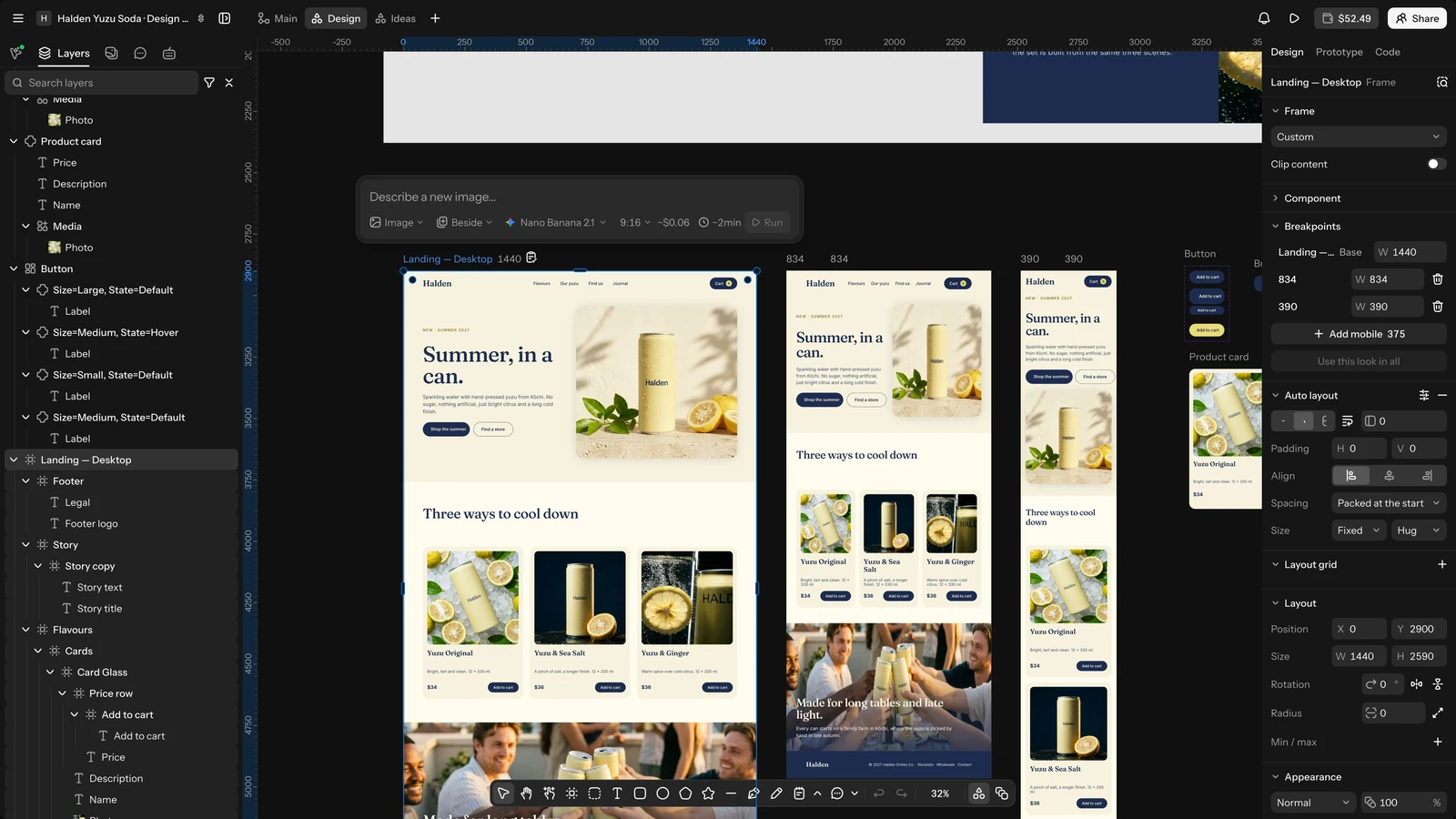
- All widths share the same layers and text: adding, deleting or reordering layers, or editing text, in any width changes every width.
- Everything else (sizes, auto layout, type size, visibility, fills) can differ per width. A change in the base reaches every width that hasn't changed that setting; a change in another width stays there.
- Push changes to all writes a layer's changes in its width to every width, and the reset button clears a width's changes.
- Remove a width with its trash button. A base with no other widths is an ordinary frame again.
Preview, the Code tab and the React export write the widths as one page with a media query per width. Make responsive with AI (in Actions) asks the agent to add the missing widths, each laid out.
Preview as a web page
Preview (Play in the top bar, Shift+Space on Windows (⇧Space on Mac)) shows the selected frame, or the first flow's, as a real web page in a new tab: the same HTML and CSS the Code tab writes, and a frame that animates plays its motion.
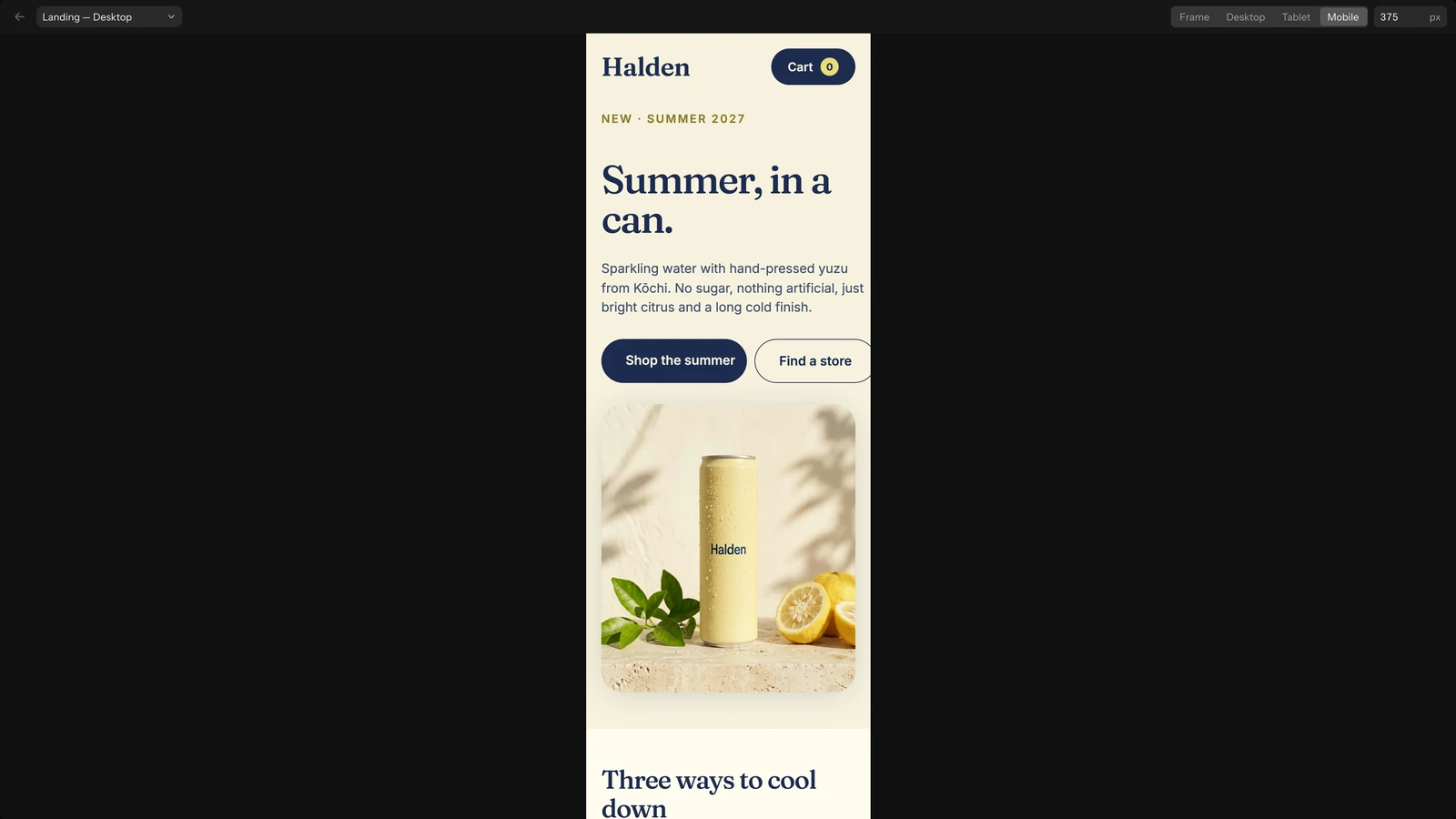
- Pick a Width (the frame's own, Desktop, Tablet or Mobile), type one, or drag either edge of the page to see how its auto layout and constraints reflow. A page with breakpoints is one page: each width takes over as the page passes it.
- A layer whose click navigates to another frame is a link there; Back returns. The Frame menu shows the other pages.
- The preview follows the board as you and others change it.
- It shows the project's own pictures only, and runs in a locked-down frame of its own, apart from your account. Who can see Present can see the preview.
In Motion, the same key plays the timeline instead.