Fills, effects and styles
Paint layers with colours, gradients, pictures, video, patterns and live shaders, add shadows, blurs and glass, and save looks as styles.
Keys on this page are shown for your computer, with the other platform's keys after them.
Fills and strokes
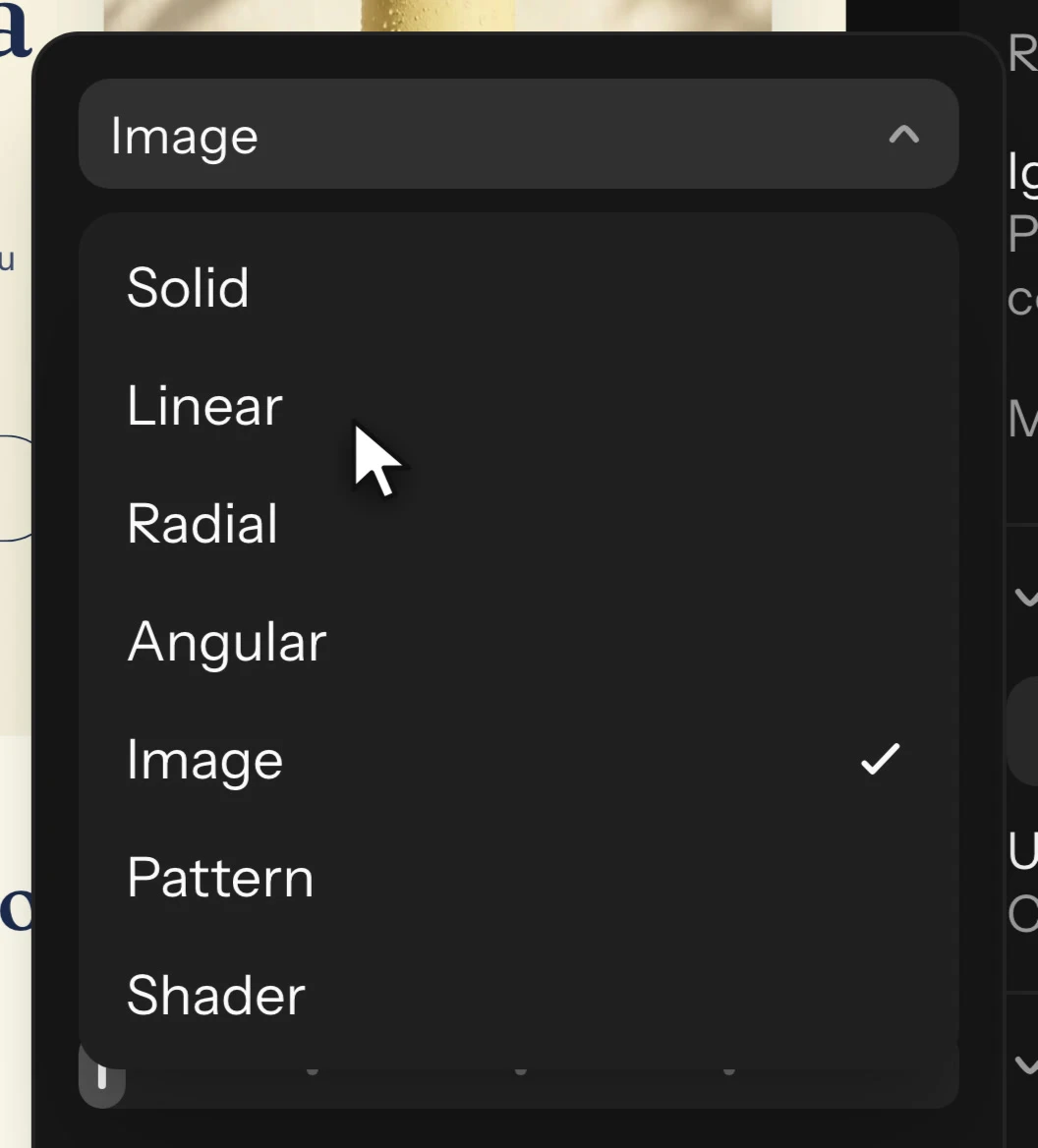
A layer can have several fills and strokes, drawn in order: click + in Fill or Stroke to add one, drag rows to reorder, and pick its type from the swatch's menu.
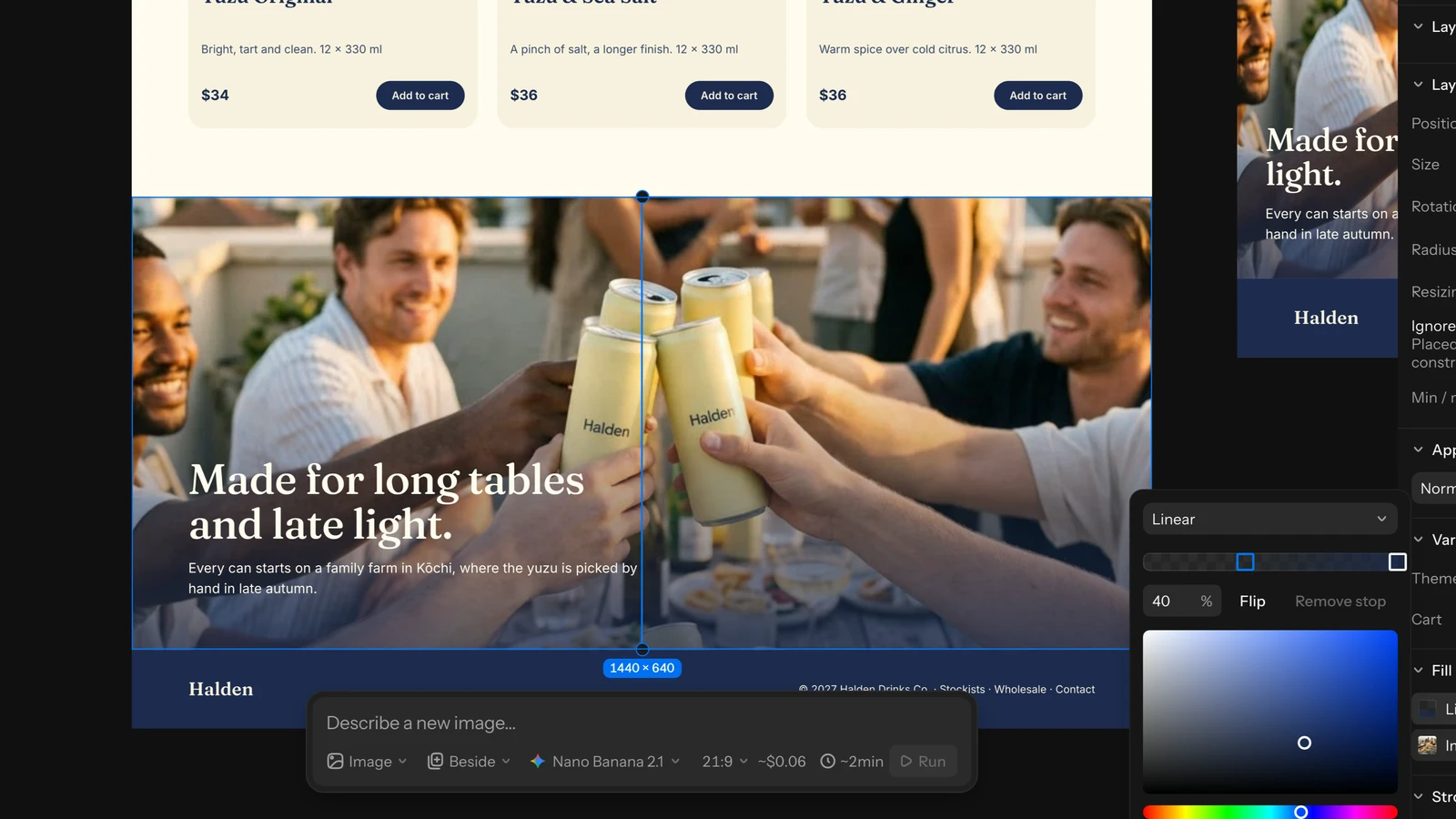
- Solid, Linear, Radial and Angular. Click a gradient's stops bar to add a stop; drag the handles on the board to move the gradient.
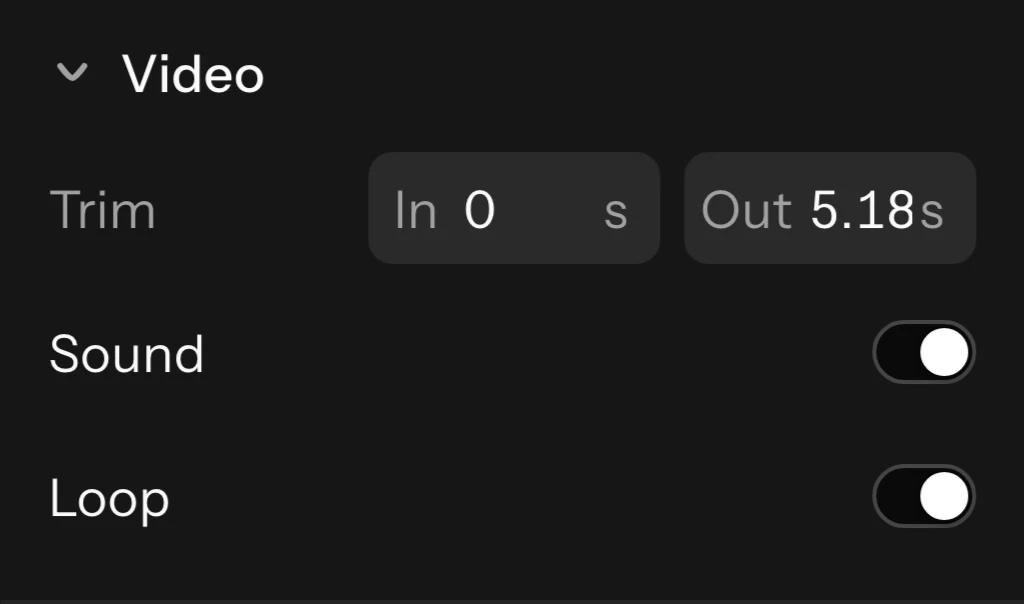
- Image (fills only): Fill, Fit, Crop or Tile. Pick a video in the image's asset picker and it plays in the fill, with Trim, Sound and Loop in the Video section.
- Pattern: click Select source, then a layer on the board, and it repeats as tiles (Grid or hexagonal), with Pattern scale, spacing and Pattern alignment. Editing the source changes every pattern of it.
- Shader: a live shader as the paint (see Shaders).
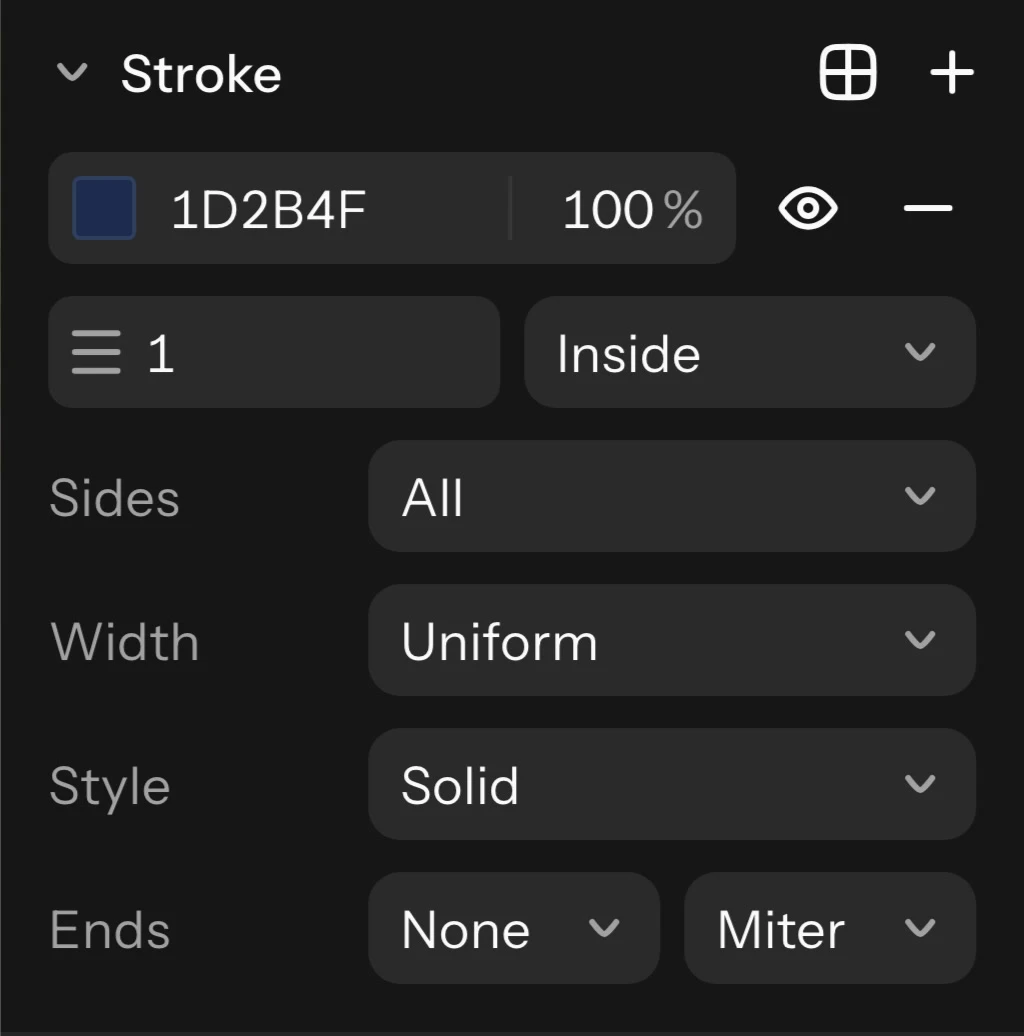
Stroke settings: Stroke weight, Stroke position (Inside, Center or Outside), Sides for rectangles and frames (one side, or Custom weights per side), Width profiles (Taper to end, Taper from start, Taper both ends, Swell, Pinch, with Flip width points), dashes (Dash, Dot, with Dash and Gap lengths), and Ends (caps and joins).
For a hand-made width, edit a vector's points and press Shift+W on Windows (⇧W on Mac) (Variable width): click the stroke to add a width point and drag its handles.
Effects
Effects change how a layer is drawn. Select a layer and click + in the inspector's Effects section (Add effect), then pick its kind from the row's menu. The gear opens its settings; the eye hides it.
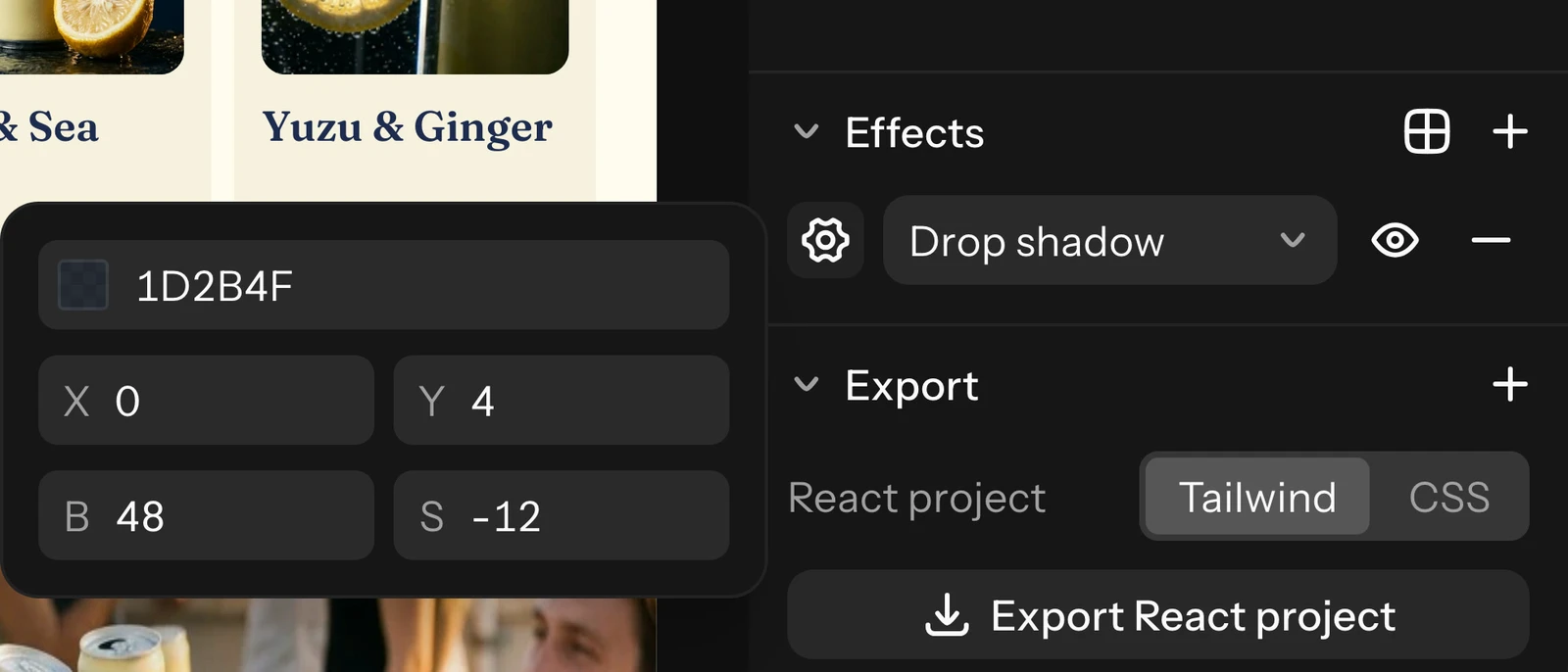
- Drop shadow and Inner shadow: colour, X offset, Y offset, Blur and Spread. Up to 8 of each.
- Layer blur and Background blur: Uniform, or Progressive with a start and end blur and a direction, so the blur fades across the layer.
- Noise: grain in Mono, Duo or Multi colours, with Noise size and Density.
- Texture: roughens the layer's edge, with Texture size and Texture radius, and Clip to shape.
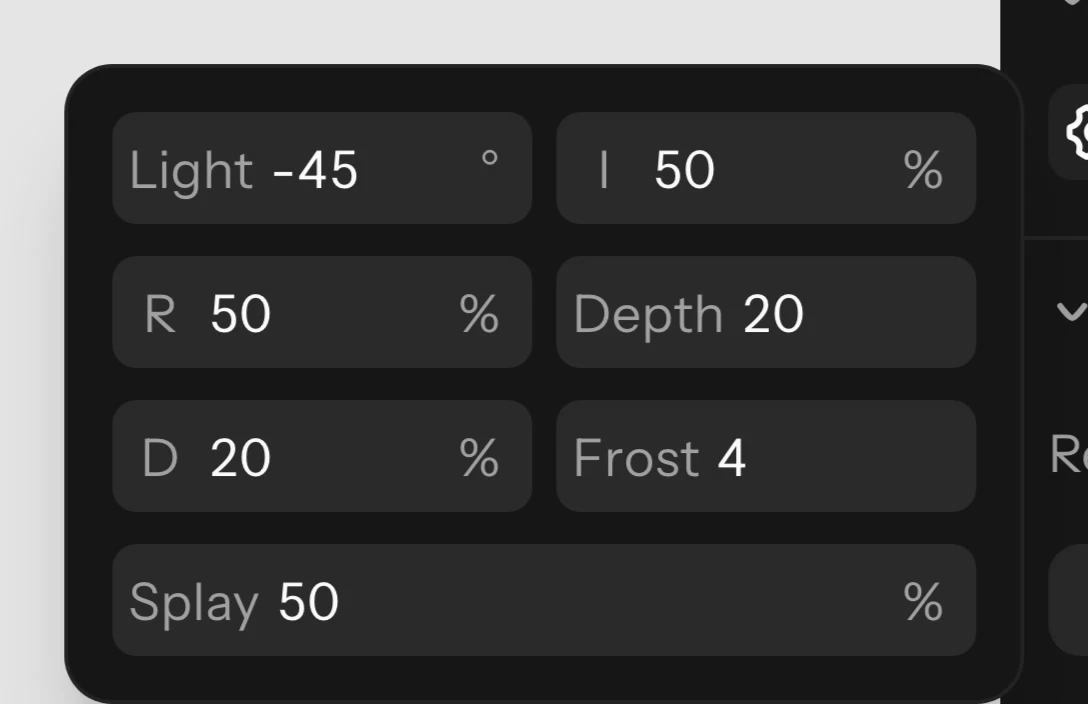
- Glass: bends and lights what is behind the layer, with Light angle, Light intensity, Refraction, Depth, Dispersion, Frost and Splay.
- Shader: a live shader effect (see Shaders).
Text takes Drop shadow, Layer blur and Background blur; groups and sections take no effects. Save a set of effects as an effect style to reuse it (see Styles).
In SVG, shader effects become pictures, and background blur and glass need a browser to show. A vector PDF draws shadows, blurs, noise, texture and glass as pictures of just those layers. In the Code tab, effects CSS cannot write are listed under Not in the code.
Shaders
A shader is a small GPU program that draws a fill or an effect live: moving gradients, grain, halftone, waves. To add one, pick Shader as a fill's type or an effect's kind, then choose a preset in its settings and change its values.
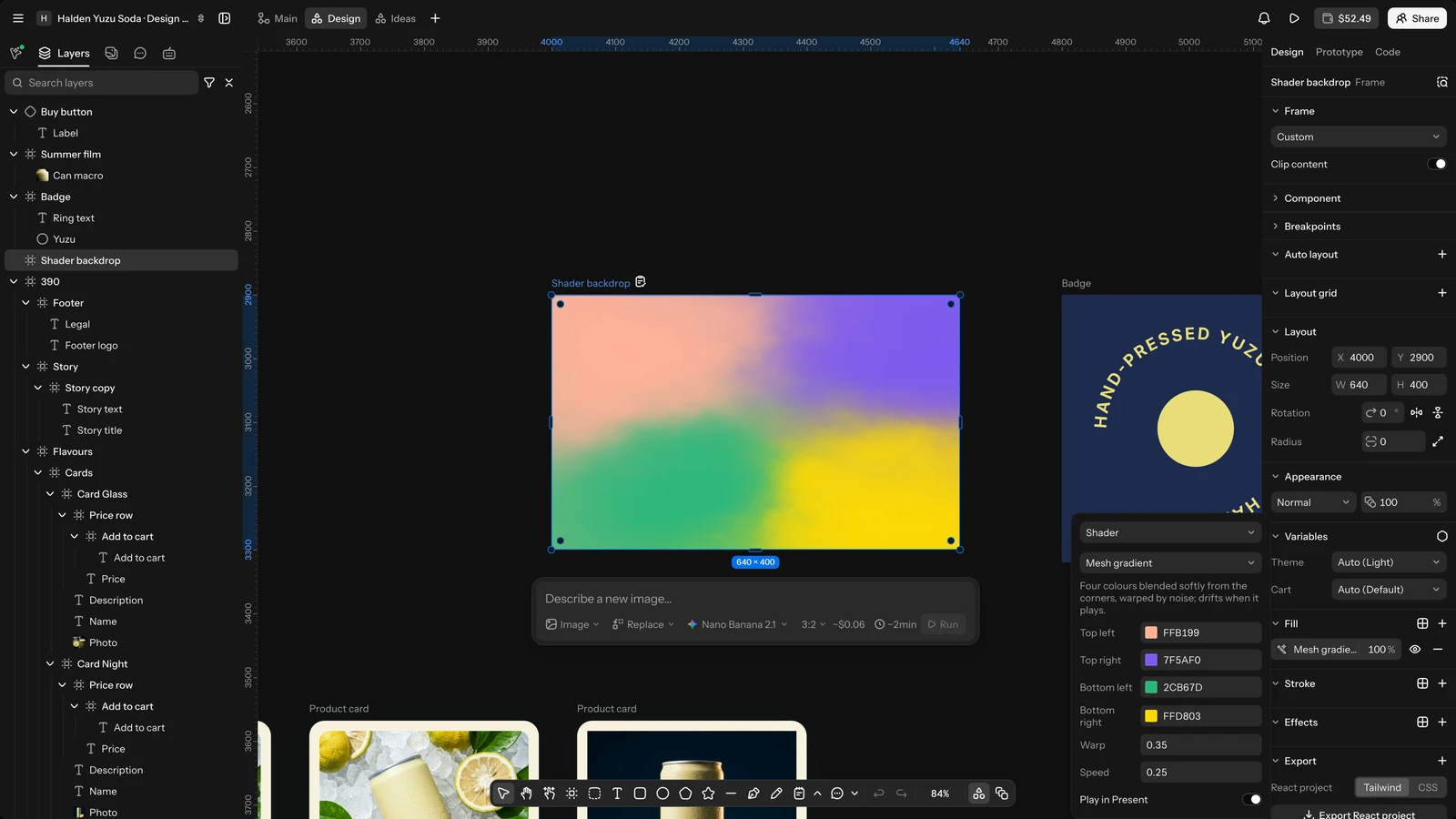
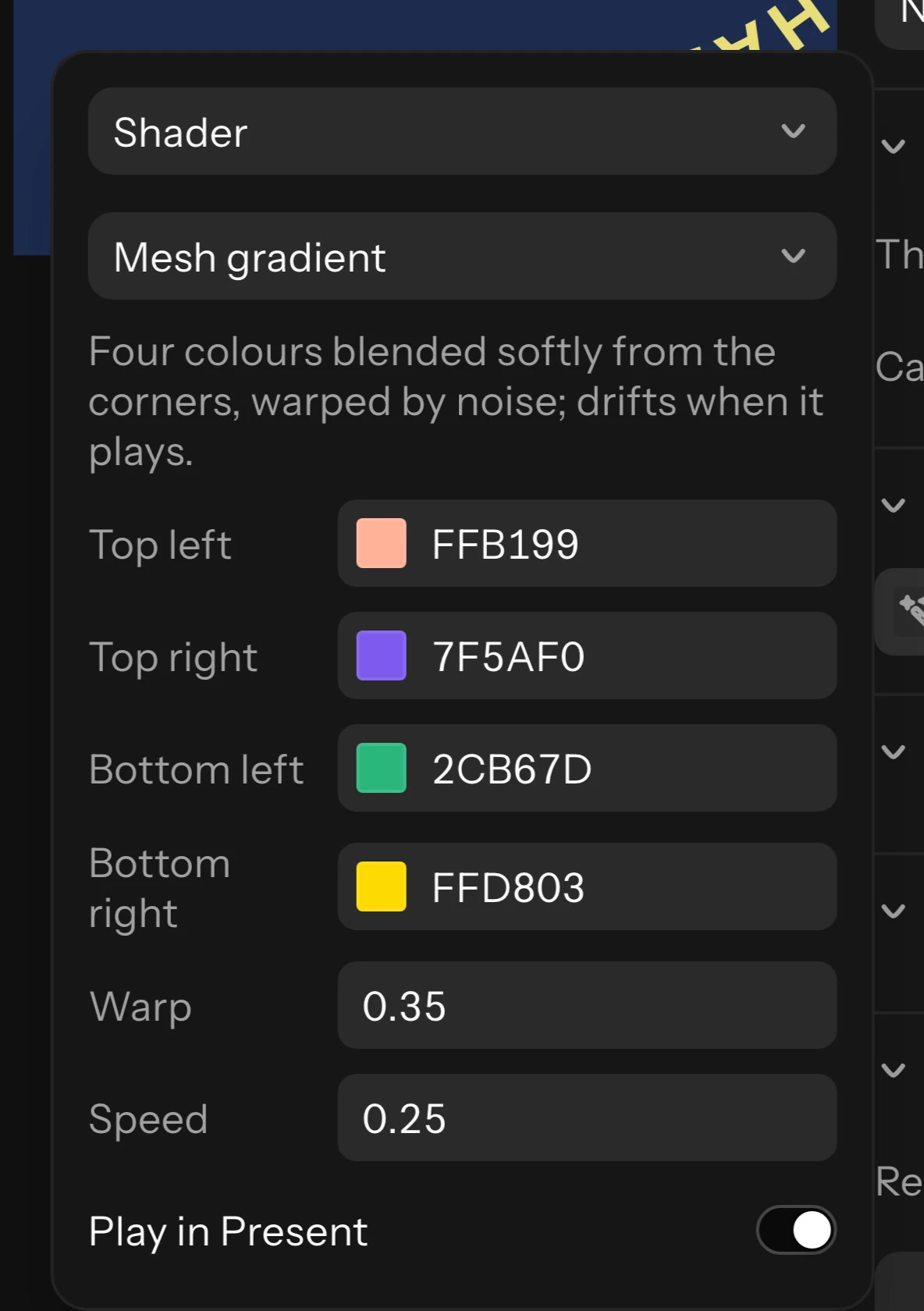
- Fill presets: Grain gradient, Mesh gradient, Noise flow, Liquid and Halftone dots.
- Effect presets: Film grain, Halftone, Chromatic shift, Wave, Pixelate and Duotone.
- Play in Present: animated shaders stay still on the board while you work, and play in Present and while the Motion timeline plays. With your system's reduced motion on, they stay still.
Write your own shader: ask Raelume Agent for the look you want. The agent writes the shader code (GLSL) and puts it on the layer; its values show as controls you can change, and the code shows read-only under Code (GLSL). To change the code, ask the agent again.
Limits you may notice:
- A layer takes up to 4 shader fills and 4 shader effects.
- A shader that fails to compile or takes too long to draw is stopped, with the reason in its settings. When a written shader is stopped, written shaders on the page wait until you click Try again.
- Shaders need a browser with WebGPU or WebGL 2.
- PNG, JPG and PDF exports draw shaders still, SVG draws them as pictures, and the Code tab cannot write them as CSS.
- Shaders the agent wrote run only for the project's people: visitors on a public link don't get their code.
Styles
Styles save a look under a name so you can reuse it, and every layer that uses a style changes when the style does. There are Colour styles (fills, strokes and text colour), Text styles, Effect styles and Animation styles.
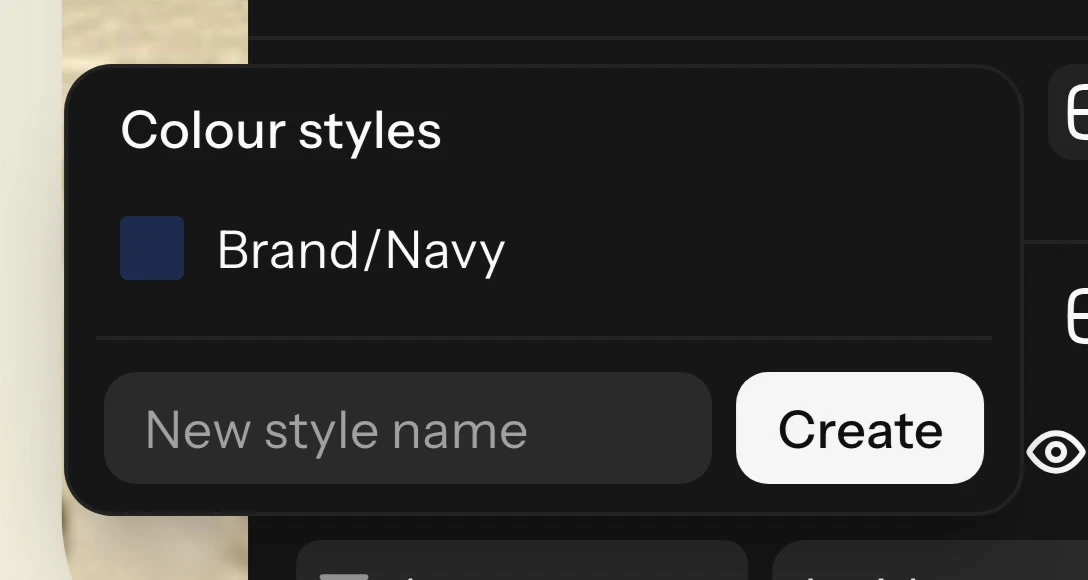
- Create: select a layer, click the styles button beside the + of Fill, Stroke, Effects or Text, type a name under New style name and click Create. The selected layers are linked to the new style.
- Apply: open the same button and click a style.
- Detach style keeps the look but unlinks it. Editing a linked setting by hand detaches it too.
- Edit, rename or delete: with nothing selected, the inspector lists the board's styles by kind. Double-click a style to rename it, or use Edit or Delete; deleting keeps the look on its layers.
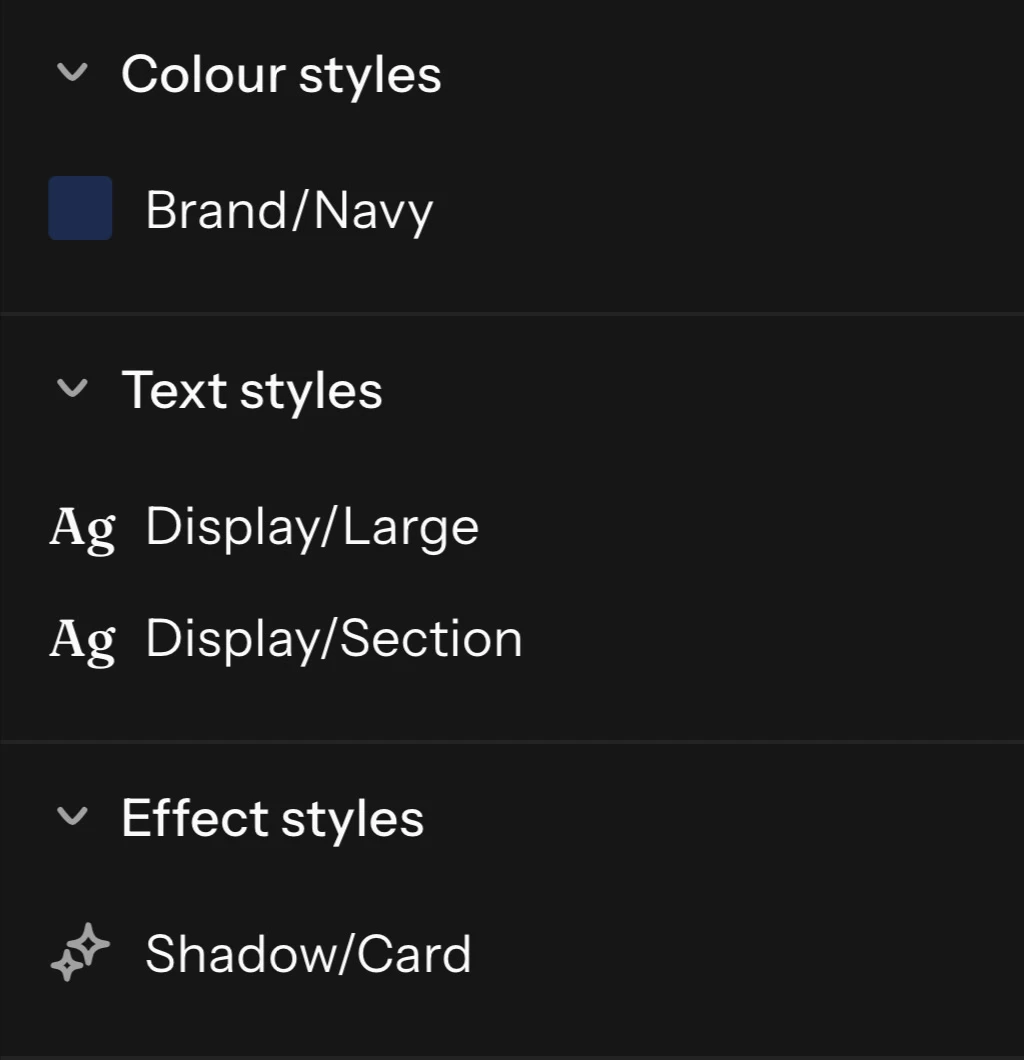
A slash in a name (brand/primary) puts styles in folders. Styles belong to their board. Animation styles are made in Motion (see Motion presets and animation styles).
Video
Video layers play in their frame. In the inspector's Video section, set Trim (In and Out), Sound and Loop.