How to Generate AI Images From a Text Prompt
Learn how to generate AI images with clear prompts, choose settings, refine variations and download results, with practical cost and usage checks.
To generate AI images from a text prompt, describe the subject, composition, lighting and intended style, then choose an available model and settings. Inspect the result against your brief and refine the prompt where details are missing or inaccurate.
Contents
- Key takeaways
- Choose a starting allowance and image settings
- How to generate AI images from a text prompt
- Create AI images as variations, then refine and download
- Check commercial permissions before client use
- Frequently asked questions
Key takeaways
- Raelume offers a no-card starting allowance, but media downloads require a paid plan; check export access before committing to a finished asset.
- Build prompts around a clear subject, composition, lighting and exclusions, then revise one variable at a time rather than rewriting everything.
- Use image transformations for variations and targeted edits for local corrections; review the result carefully before downloading.
Choose a starting allowance and image settings
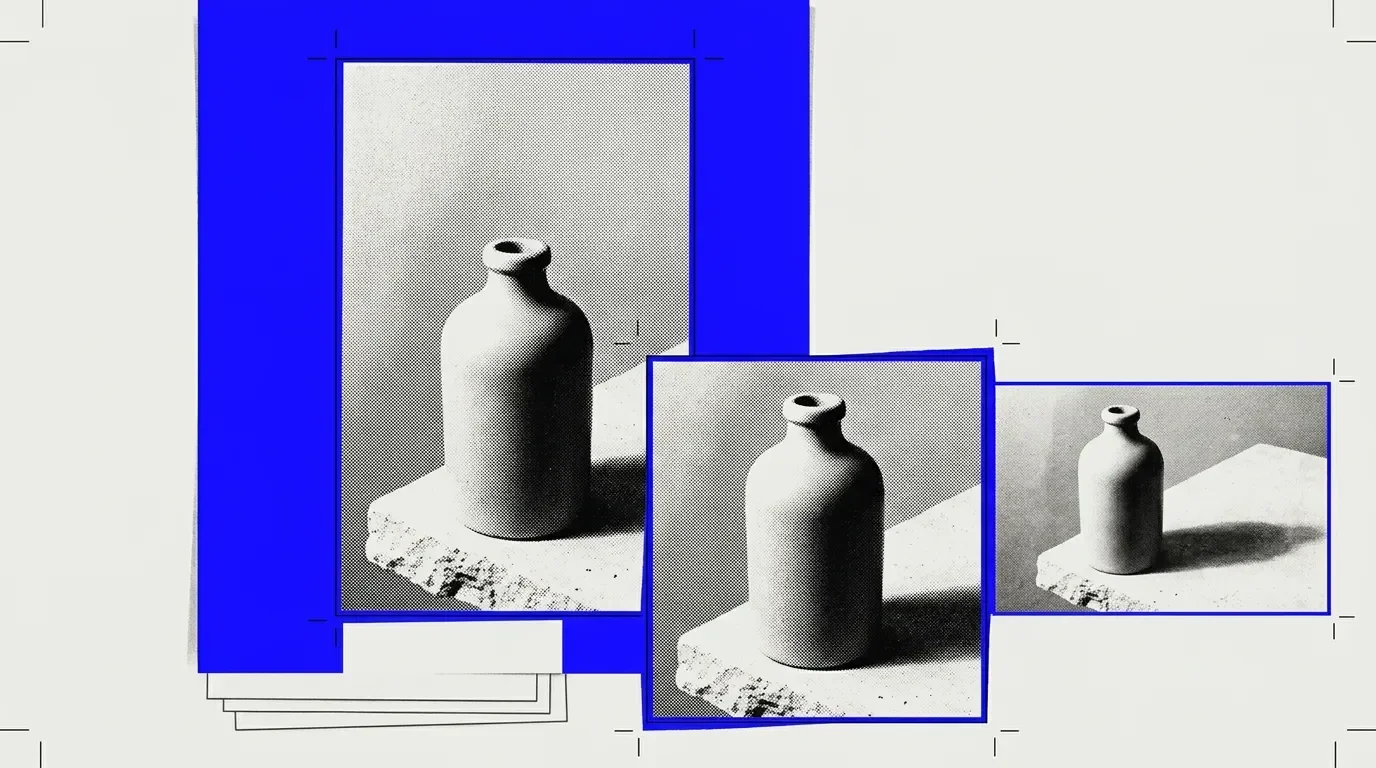
Our Free plan starts with $1 and requires no card. That allowance covers about 285 images or four videos, as described on our Raelume pricing page. Every generation run displays its price before it starts.
We offer 17 image models and settings among 86 total models and settings. Choose based on the controls your task needs.
Free allows one concurrent generation; Creator allows five. Concurrency describes how many generations can run at once, not how quickly an individual image finishes. If you are learning, inspect each result before starting another so you can make a deliberate revision.
Before generating, choose an available output shape suited to the placement, such as a tall composition for a vertical campaign layout. Check supported dimensions and inspect the selected model’s controls. Leave room for headlines or cropping in the composition, and avoid assuming that every model offers the same settings.
How to generate AI images from a text prompt
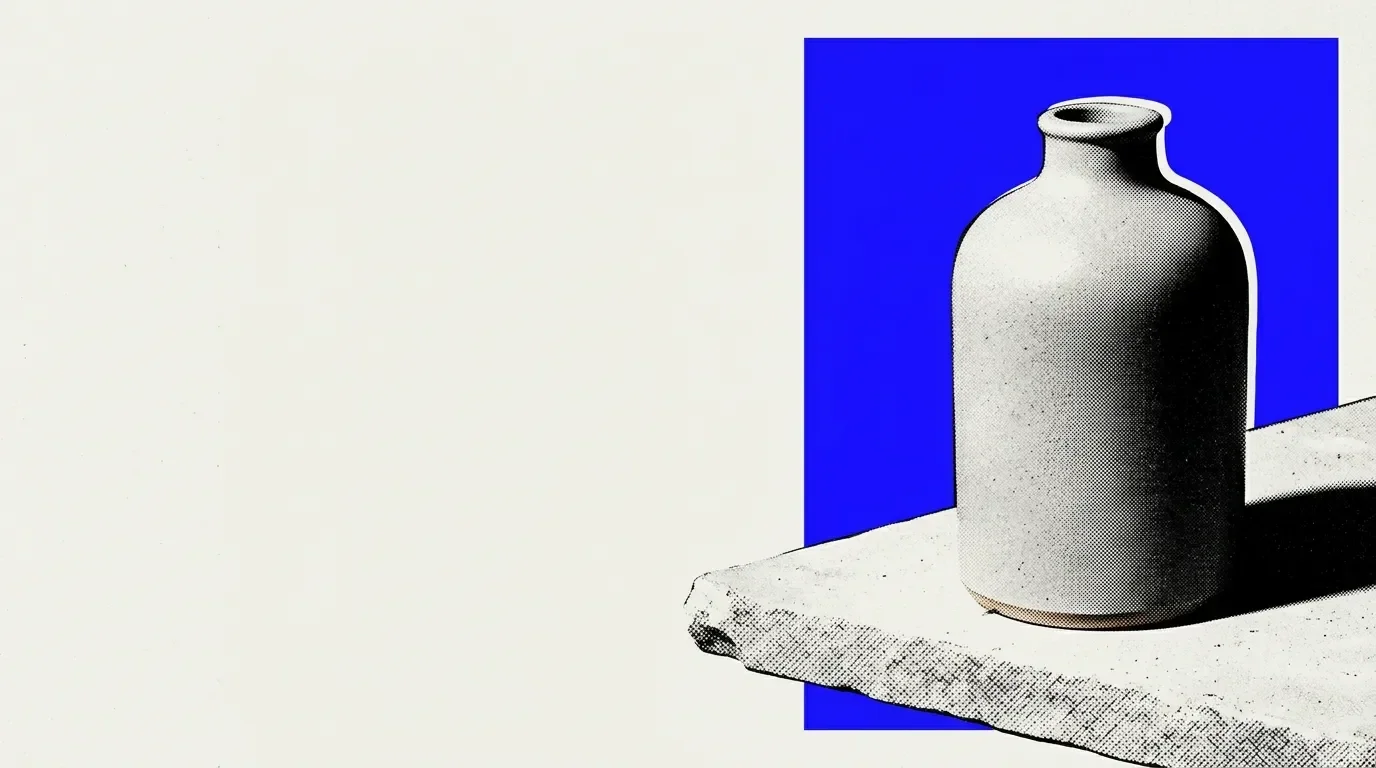
Start by naming the subject and its intended use. A product image for a campaign needs a clear focal point and room for copy, while a concept image may prioritize atmosphere. Describe the composition, materials, lighting and background in concrete terms so you have a brief against which to judge the result.
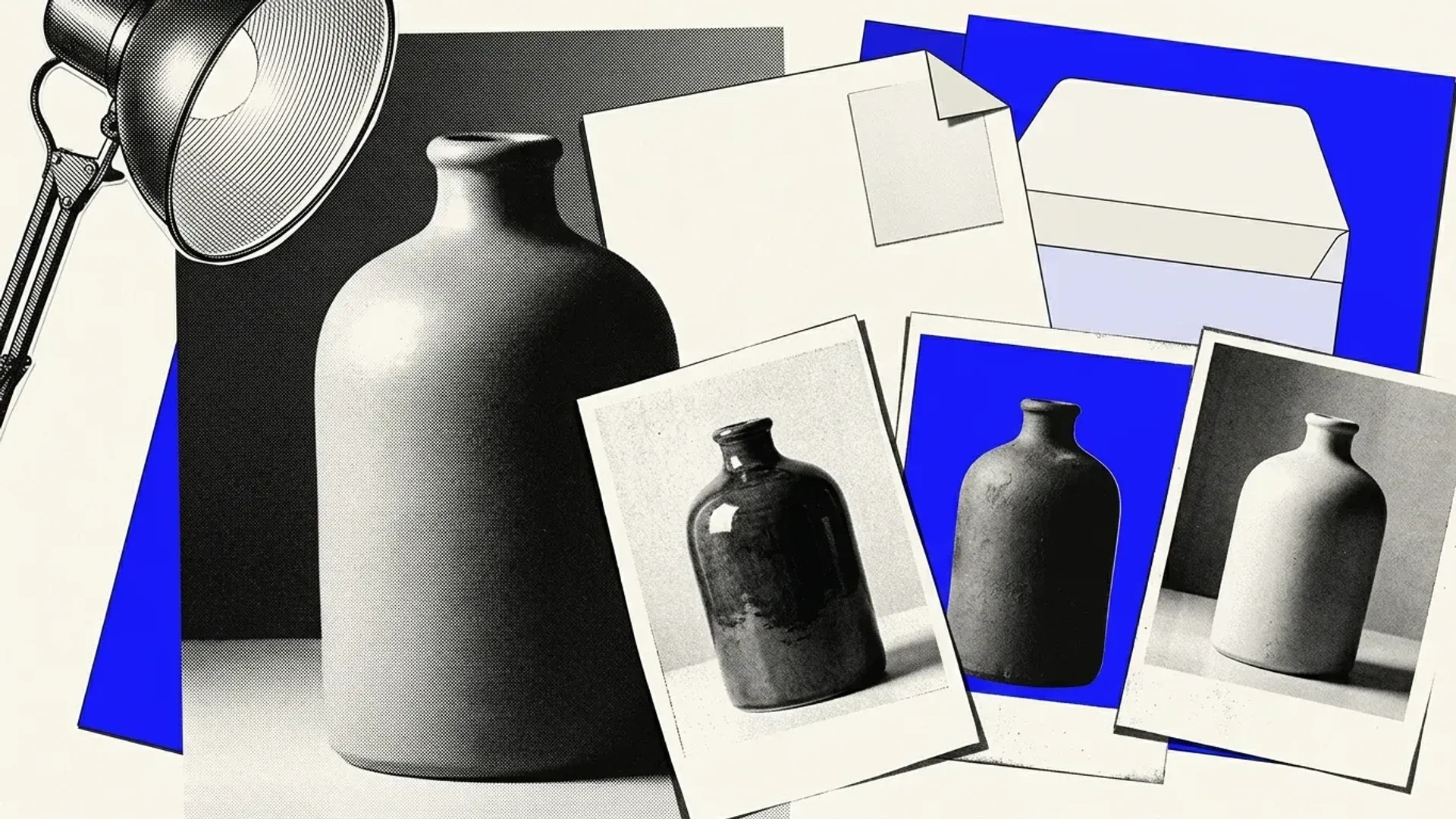
An illustrative prompt could read: “An unbranded matte ceramic bottle on a pale stone surface, positioned on the right side of the composition. Soft side lighting reveals the ceramic texture, with gentle shadows and a simple pale background. Leave clear space on the left for a campaign headline. No lettering, logos or decorative marks.”
Generate an image, then inspect the framing, bottle silhouette, surface texture, shadows and empty space. Judge whether the image meets the brief before spending time on smaller details.
Revise one variable at a time. If the bottle crowds the frame, adjust its requested size or position. If the surface looks glossy, make the matte finish more explicit. If unwanted lettering appears, reinforce the request for an unmarked surface. Add precise campaign lettering later in the layout rather than relying on generated text.
For repeated work, an LLM or Prompt block can supply dynamic prompts reusable across generations; our Image Block documentation explains these options.
Create AI images as variations, then refine and download
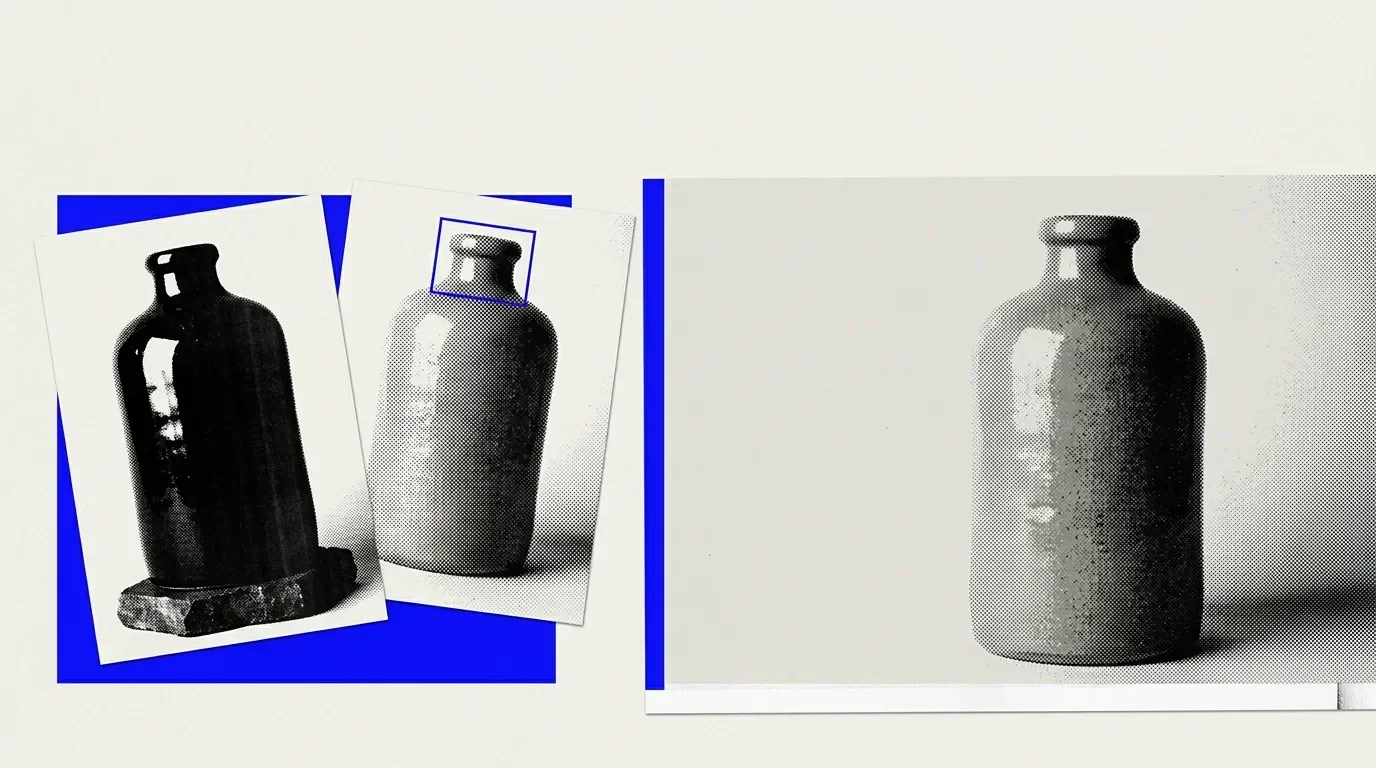
Choose the scope of your revision before generating again. For broader changes, our Image block supports image-to-image transformations, including style transfer, enhancements and AI-powered modifications. Use this approach when you want to explore a different visual treatment of an existing image. Keep the original brief nearby so a more appealing variation does not displace an essential requirement.
For a local correction, use targeted inpainting; for a scene that needs more room beyond its borders, use outpainting. Our built-in editor includes layers and regions for refining images. You can also explore image-editing workflow templates when planning your edits. Choose the smallest change that addresses the problem, then inspect the whole image again rather than assuming surrounding details remain acceptable.
Use the versioning button at the top left of the block to browse generated images. Compare candidates against the brief, checking product shape, architectural geometry, hands and unintended text.
Media downloads are locked on our Free plan and included with paid plans.
Check commercial permissions before client use
We permit commercial use of generated content, including client work, brand collaborations and monetized content, without extra licensing fees. Our Terms also state that users retain ownership of content they create, upload or generate using the service.
Those permissions do not by themselves clear third-party trademarks, likeness permissions or rights in uploaded references.
Before releasing a client asset, check that you are authorized to use each uploaded reference for the intended purpose. Inspect the image for recognizable logos, people, characters and other protected elements. For sensitive commercial work, obtain the appropriate client, rights-holder or legal approval before publication, and record any restrictions alongside the approved asset.
To put your brief into practice, try generating AI images with Raelume.
Frequently asked questions
What happens to prompts and images I submit to Raelume?
Your prompts and input content are sent to third-party AI providers for generation. We do not use your content, prompts or generated outputs to train AI models. Image, video and 3D generation providers typically retain generated content and prompts for 30 days or less for operational purposes, then delete them. That typical retention period is not a universal guarantee, and our no-training policy should not be read as a promise about every provider’s practices.
Before uploading confidential client material or personal images, check that the intended processing meets your permissions and confidentiality obligations.